Backup data with Transfer Tool
Requirements
To backup your data using Transfer Tool, you will need the following available:
An external hard drive, or 2nd USB drive to temporarily hold the backed up data on
Launching Transfer Tool
To start things off, go into the to launch Transfer Tool.
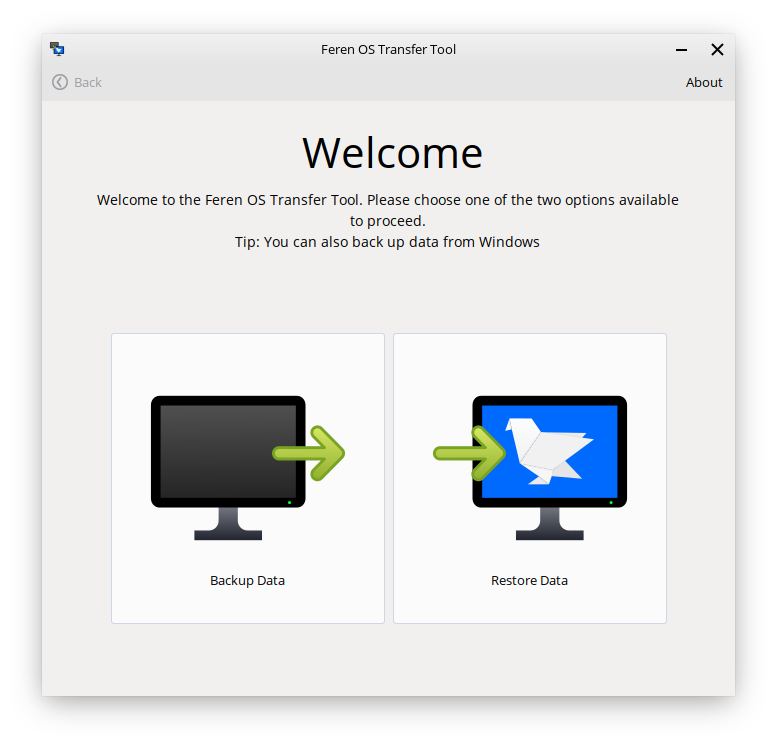
Once you’ve got Transfer Tool running, you’ll be presented by this window:
Mounting the External Drive
Next, you’ll want to mount one drive: Your external hard drive/2nd USB drive. You can do this by:
Launching Files -
Clicking on the drive in Files’s left sidebar so that it has an eject icon on the right side of it.
Hint
If you have not already plugged it in, you should plug the drive in and then mount it.
Backing up data with Transfer Tool
Now you have mounted the external backup drive ready for the backup process, go back into Transfer Tool and click on Backup Data.
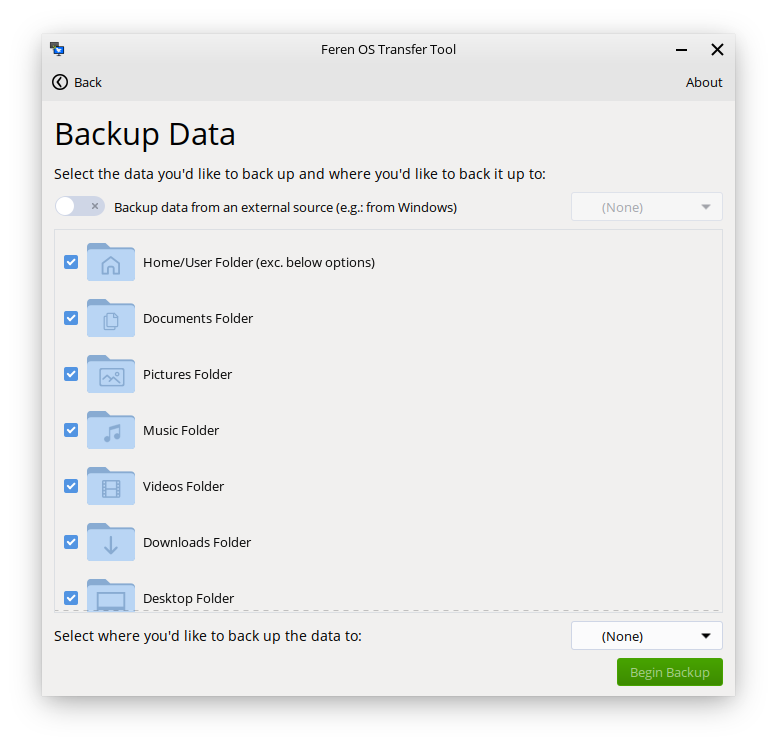
On the next page in Transfer Tool make sure the switch at the top saying Backup data from an external source is switched on. After that, click on the dropdown menu on the right of that switch and select your Windows partition.
Now go to the dropdown at the bottom that says Select where you’d like to back up the data to and from there select your external hard drive/2nd USB drive.
Now the ‘Begin Backup’ button should be enabled - once it is enabled, just click ‘Begin Backup’ to begin the backup process.
Once you’re done with Transfer Tool
Once the Transfer Tool has finished you will be taken to a new page that will either say all the data has been backed up successfully, most of the data has been backed up successfully, or that the whole backup process has failed.
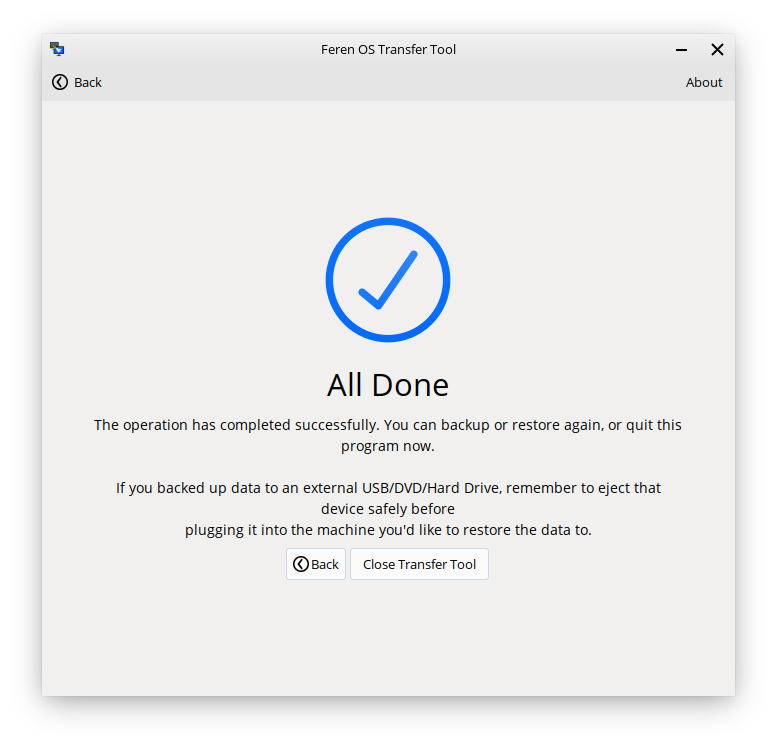
If your data was backed up successfully then you should close the Transfer Tool, open Files, hit the eject button on your external hard drive/2nd USB drive and then disconnect the external hard drive/2nd USB drive, physically, from your computer.
After doing that you can proceed to install Feren OS onto your computer.