Setting up Feren OS
Welcome to Feren OS! You now need to set Feren OS up with a user account.
Booting with ‘nomodeset’ (for NVIDIA users)
If you have NVIDIA Graphics on your device, and needed to use the nomodeset option to get Feren OS installed, you will need to boot into nomodeset again on your newly installed Feren OS.
Since you’re dual-booting with Feren OS, a boot options screen will appear like the one depicted below:
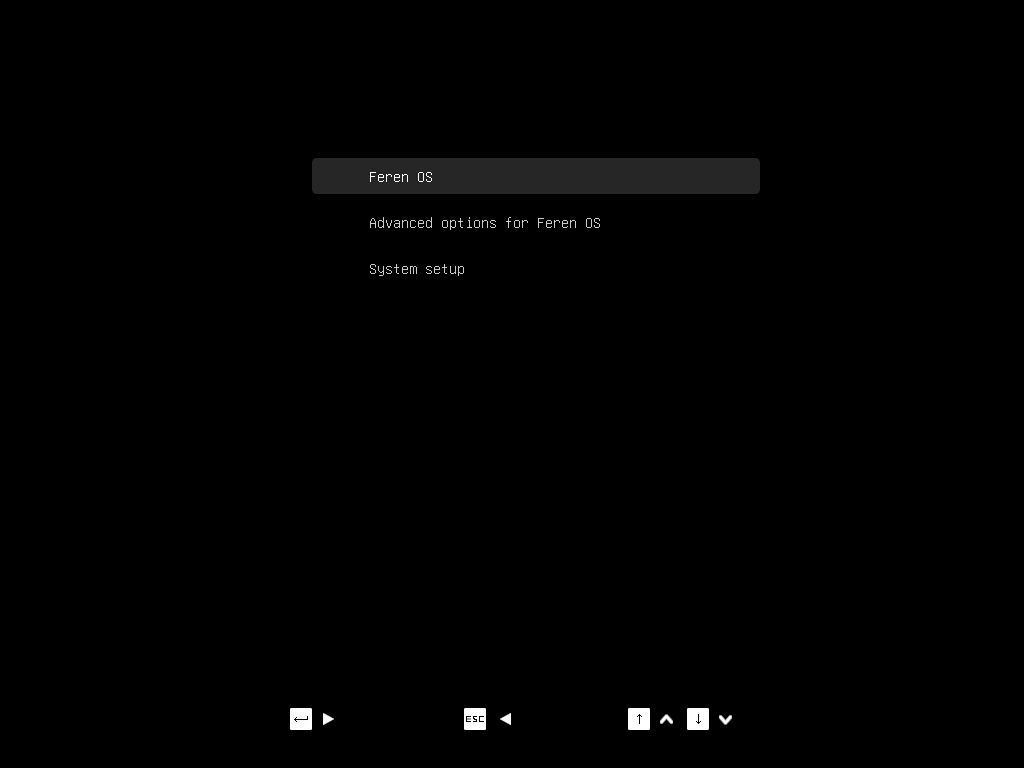
Feren OS’s boot options menu
Scroll with the up and down arrow keys to Advanced options for Feren OS and press Enter, then scroll to the first (nomodeset) option and press Enter to boot into Feren OS with nomodeset.
Step 1: Select your location
You should see a location select screen. From here either click where you are on the world map or use the dropdown menus below the map to select your region and zone.
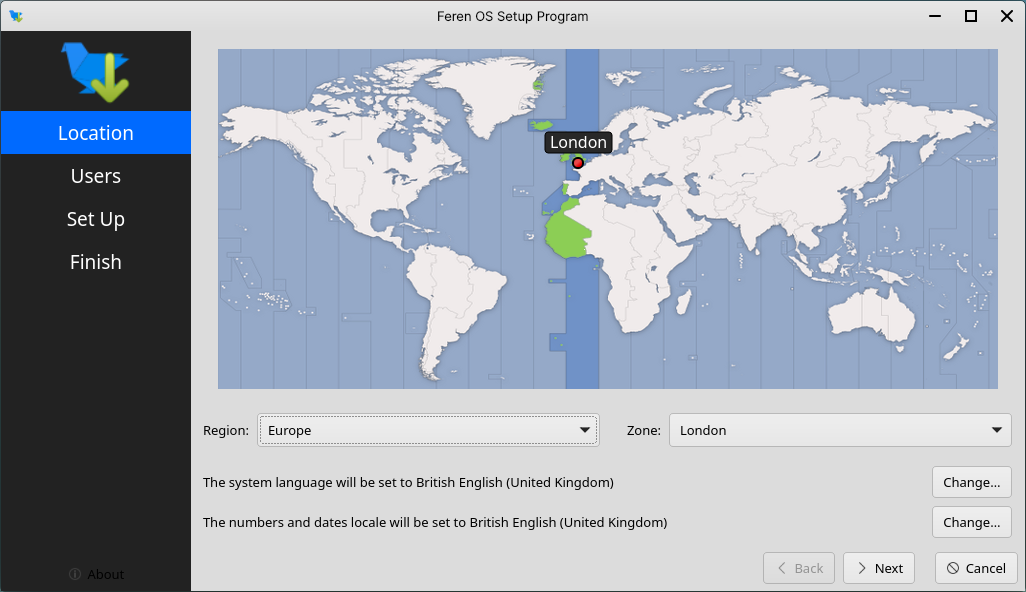
Once you’ve set your location click Next again.
Step 2: Create your user account
You should now see a bunch of textboxes asking you for your name, name to log in with, computer name, and password.
Your name can be any name you would like - it will be the name shown for your user account on the login screen
The name to log in with is a lowercase no spaces username used for some backend tasks in Feren OS
The computer name is a name you can pick to identify your computer with against other computers in your house or network
The password is a requirement to keep your account secure - make sure you use a memorable password and don’t share it with anyone you don’t want accessing your user account

Once you’ve filled each textbox as you see fit for your account, click Set Up.
Warning
The “name to log in with”, also known as your username, cannot be fully changed after Setup without creating a new user account.
After completing, Feren OS will restart automatically to finish Setup.
Note
If you used nomodeset to boot in earlier, you will need to do so again.
Step 3: Get Drivers
Feren OS is now fully installed. To finish setting Feren OS up, you need to check for extra drivers available for your computer, and if available install them.
To do so:
Open Driver Manager ().
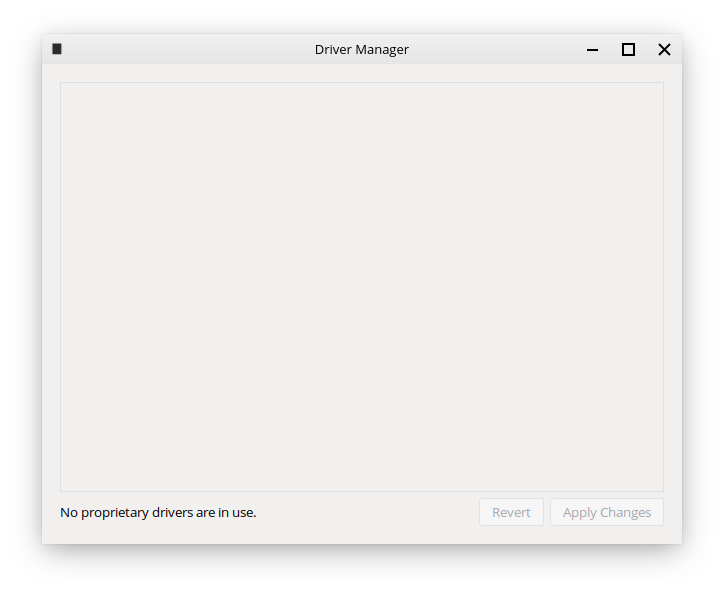
Hint
If you are offline, the Driver Manager will complain that it cannot connect to the Internet.
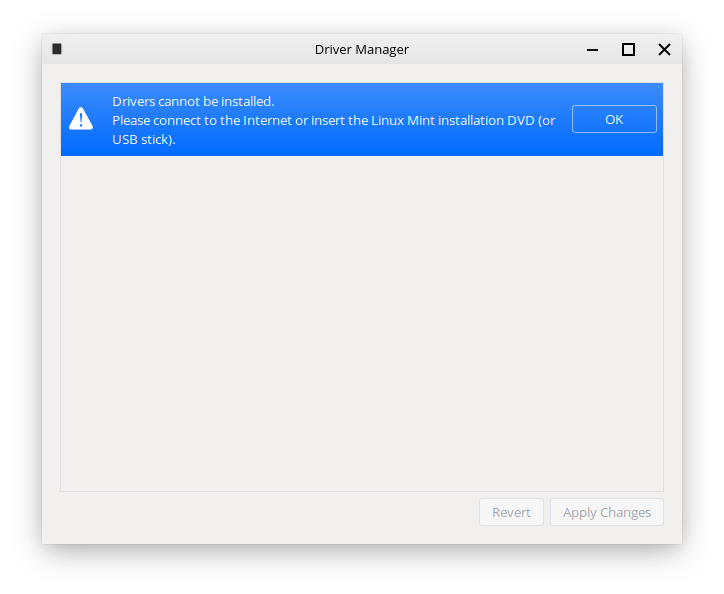
Insert the USB stick or DVD you flashed/burned Feren OS onto earlier, wait for it to be mounted, and click OK.
If drivers are available, tick the appropriate checkboxes to select the available drivers and click Apply Changes.
Restart the computer once finished. You have successfully set up Feren OS and can start using it!