Booting the USB or DVD
Now that you have Feren OS on a USB stick (or DVD), boot the computer from it.
Insert your USB stick (or DVD) into the computer.
Restart the computer.
Before your computer boots your current Linux installation you should see your manufacturer’s logo. Check the screen or your computer’s documentation to know which key to press and instruct your computer to boot on USB (or DVD).
Note
Most hardware has a special key you can press to select the boot device, and all of them have a special key to enter the BIOS/Firmware Configuration screen (from which you can define the boot order). Depending on the hardware, these special keys can be Escape, F1, F2, F8, F10, F11, F12, or Delete. On some hardware, that information is briefly written on the screen during the boot sequence.
Hint
On Macs, keep your finger pressed on the Alt or Option key after pressing the power on button.
When booted Feren OS will show a language select menu as depicted in the example shown below:
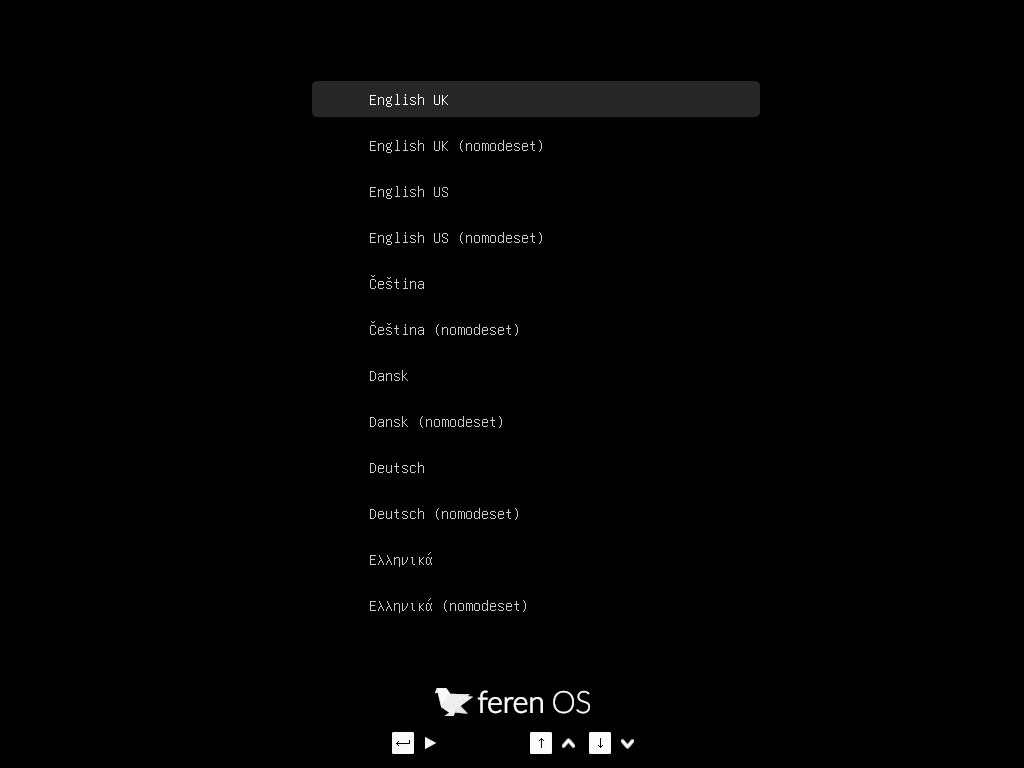
Feren OS’s language select menu
Scroll with the up and down arrow keys to your language and press Enter to start Feren OS from your USB stick (or DVD).
Booting with ‘nomodeset’ (for NVIDIA users)
If you have NVIDIA Graphics on your device, you may run into graphical issues when booting into Feren OS normally as the correct drivers for your hardware are not present by default in Feren OS.
However, there is a quick workaround. In both boot menus there is an option called “nomodeset”. If you’re having problems with booting Feren OS normally on NVIDIA hardware then simply select the nomodeset option instead and Feren OS should boot, albeit with some graphical deficiencies compared to what it looks like once properly installed and with the correct drivers installed onto it.