Widgets
Widgets are gadgets that you can add to the Desktop as well as to Panels.
To add a widget, you must enter Edit Mode by right-clicking the Desktop, or an empty part of a Panel, and selecting Enter Edit Mode in the menu that appears.
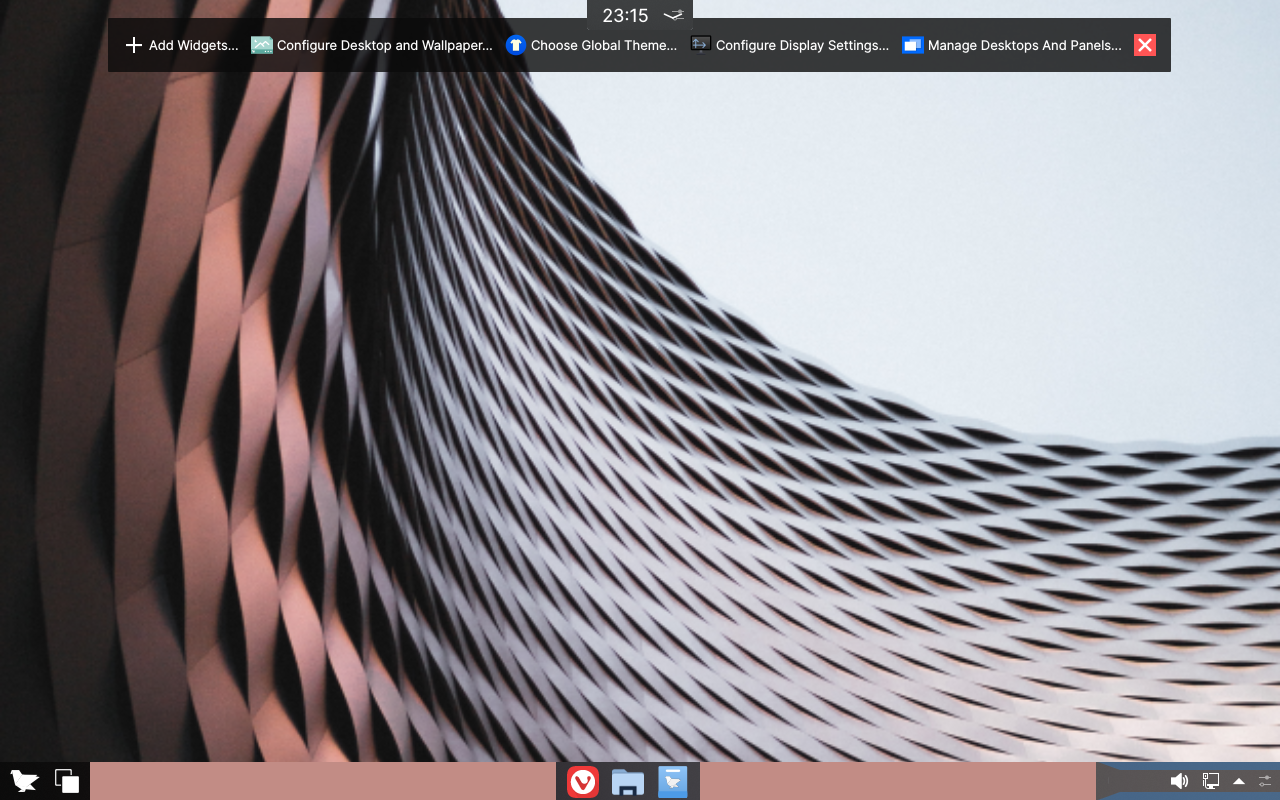
Now you’re in Edit Mode, click Add Widgets… to open the widget browser.
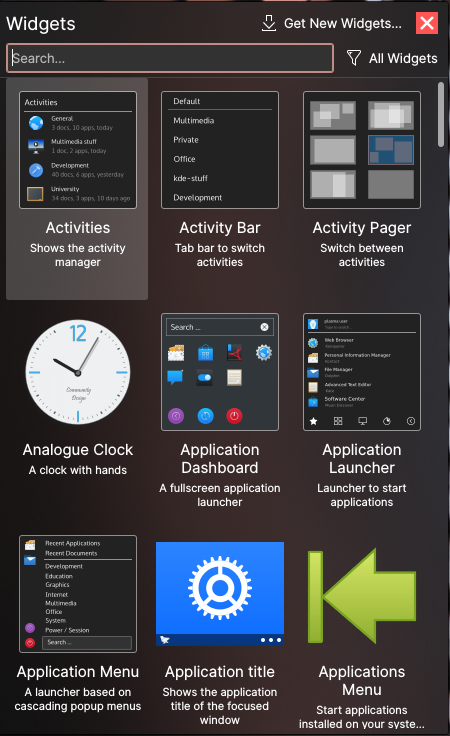
From the widgets sidebar, you can:
Get New Widgets from the top-right of the sidebar
Drag widgets to add them to the Desktop or a Panel
Double-click a widget to add it to the Desktop
When finished, click the X button on the top bar to exit Edit Mode.
Managing widgets on the Desktop
To manage a widget on the Desktop, you have two options:
Enter Edit Mode and move your mouse onto the widget
Click and hold on the widget without moving it
If successful, resize handles and a grip with options will appear around the widget.
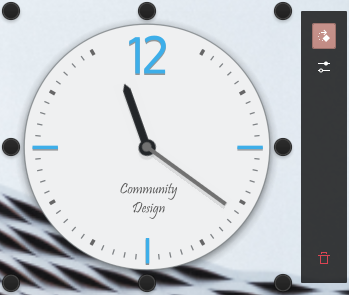
From here you can:
Resize the widget
Spin the widget
Configure the widget
Disable the background of certain widgets
Remove the widget
Removing widgets in a Panel
To remove a widget in a Panel, you must:
Enter Edit Mode
Click on the settings button at the end of the panel the widget is inside
Hover on the widget
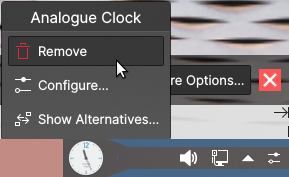
In the options that pop out of the widget, select Remove